Themes
A theme is how Hydra looks: its colours, the shape of its windows and
controls, its fonts, and a frame round its windows if you want one. Hydra
comes with two, Despana, dark, and Light. A theme you make is
kept in the themes folder in Hydra’s data folder, and says only what
it changes from the theme it is laid over.
This chapter goes through the editor, then making the colours, pinning a colour, shape, frame and type, and examples.
Wearing a theme
- Settings › Hydra › Hub › Theme: the theme Hydra wears: the hub, Settings, the Editors, and every play window whose character has no theme of its own. Tick Follow the computer’s dark or light mode and Hydra wears the Light theme chosen below it while the computer is in light mode.
- Settings, a character, its Theme page: that character’s window can wear a theme of its own, and an Accent of its own over it: the colour of what is chosen, a guide while arranging, a find’s hit. Edit this theme… under them opens the editor on the theme the character wears.
- From a play window:
.theme listlists them,.theme mine <name>(oroff) chooses the character’s own, and.theme accent <#rrggbb>(oroff) its accent.
The editor
Open Menu › Editors › Themes, on the hub or on any play window’s title bar: the Editors window opens at it, its draft the theme Hydra wears. Edit this theme… on a character’s Theme page in Settings opens it on that character’s theme instead.
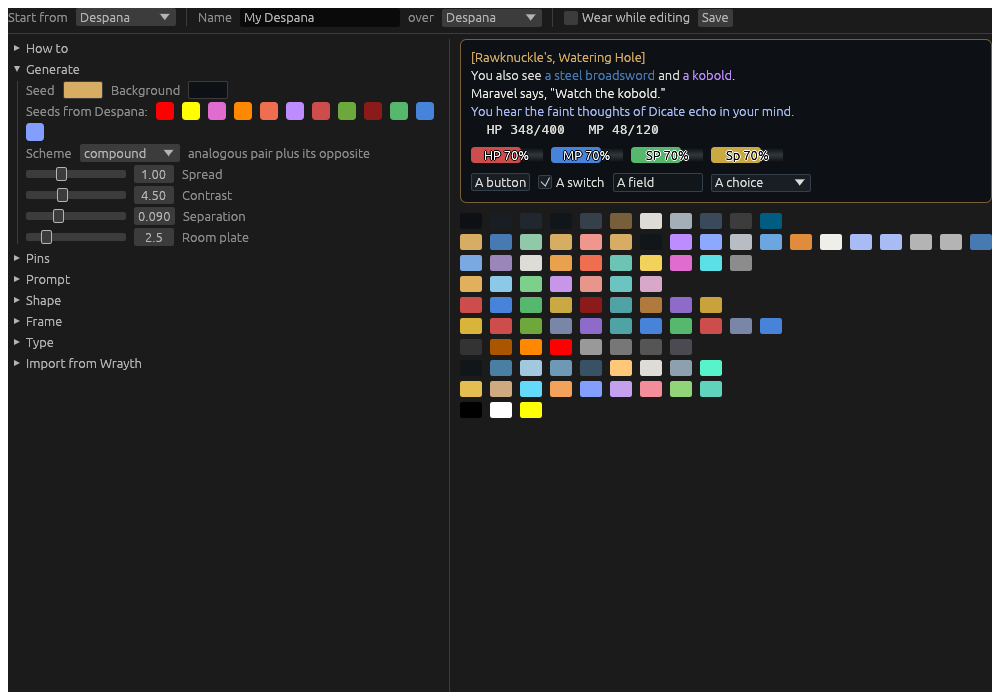
Along the top:
- Start from: the theme the draft begins as. A built-in theme starts a new one laid over it, called My Despana or My Light; one of yours opens as it is, to change.
- Name: what the theme is called.
- over: the theme it is laid over, which it takes everything it does not say from; nothing for none.
- Wear while editing: every window wears the draft as you change it, while the page is open. Leave the page and Hydra wears its own theme again.
- Save: writes the theme to the
themesfolder. A built-in theme is never written over: save under another name.
Down the left, the sections: How to, a short version of this chapter; Generate; Pins; Shape; Frame; Type; and Import from Wrayth. On the right, the draft as it comes out: a room, story text, the bars, a button, a switch, a field and a choice, and under them every colour as a swatch, a row to a group. Point at a swatch for its name and value.
The theme file
A saved theme is a short TOML file, holding only what differs from its base:
base = "Despana"

[recipe]
seed = "#c9733a"

[pins]
health = "#112233"
fatal_crit = "#d03a3a"
creature_death = "none"

[shape]
bar_thickness = 14

[shape.corners]
bars = 0

[type]
story_font = "Iosevka"
The editor writes it for you; you can write one by hand too.